The HubSpot integration is available on Blinq Business and Enterprise plans. For larger organization setups, talk to sales.
Integrating with HubSpot from the Blinq dashboard
1
Open Settings
- In the Blinq dashboard, navigate to Settings in the left-hand menu.
- Select the Integrations tab.
- Click Connect on the HubSpot integration.
2
Log in to HubSpot
A pop-up window opens. Log in to your HubSpot account, or create one if you don’t have one yet.
3
Select your HubSpot account
If you have access to multiple HubSpot accounts, select the account you’d like to connect to Blinq.
4
Confirm
Once authorized, Blinq returns you to your dashboard with the HubSpot integration settings visible.
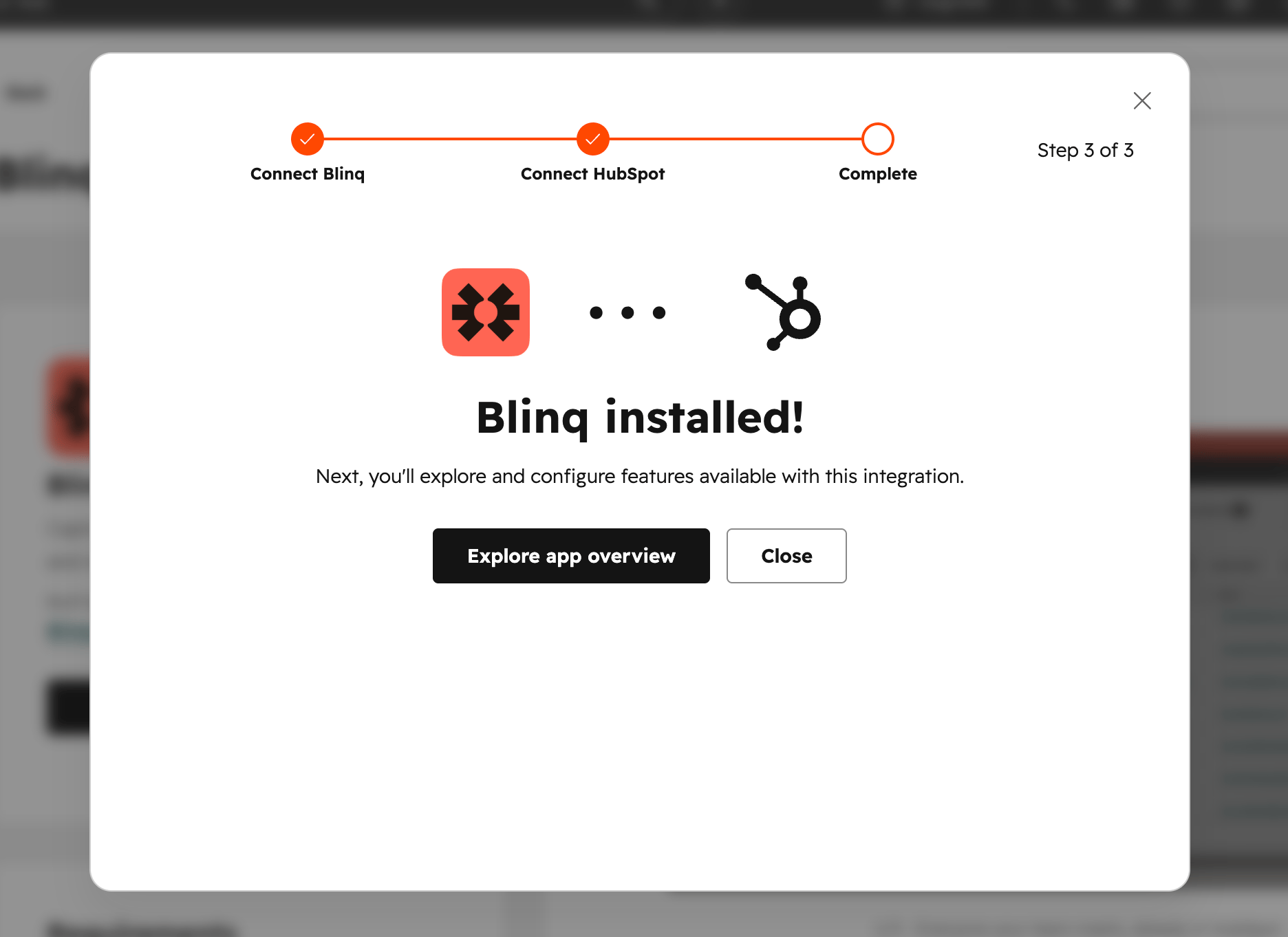
HubSpot is now connected to Blinq.
Integrating with Blinq from the HubSpot Marketplace app
1
Find Blinq in the Marketplace
In HubSpot, navigate to the Marketplace and search for the Blinq app, or you can visit our listing directly here: Blinq app on HubSpot Marketplace.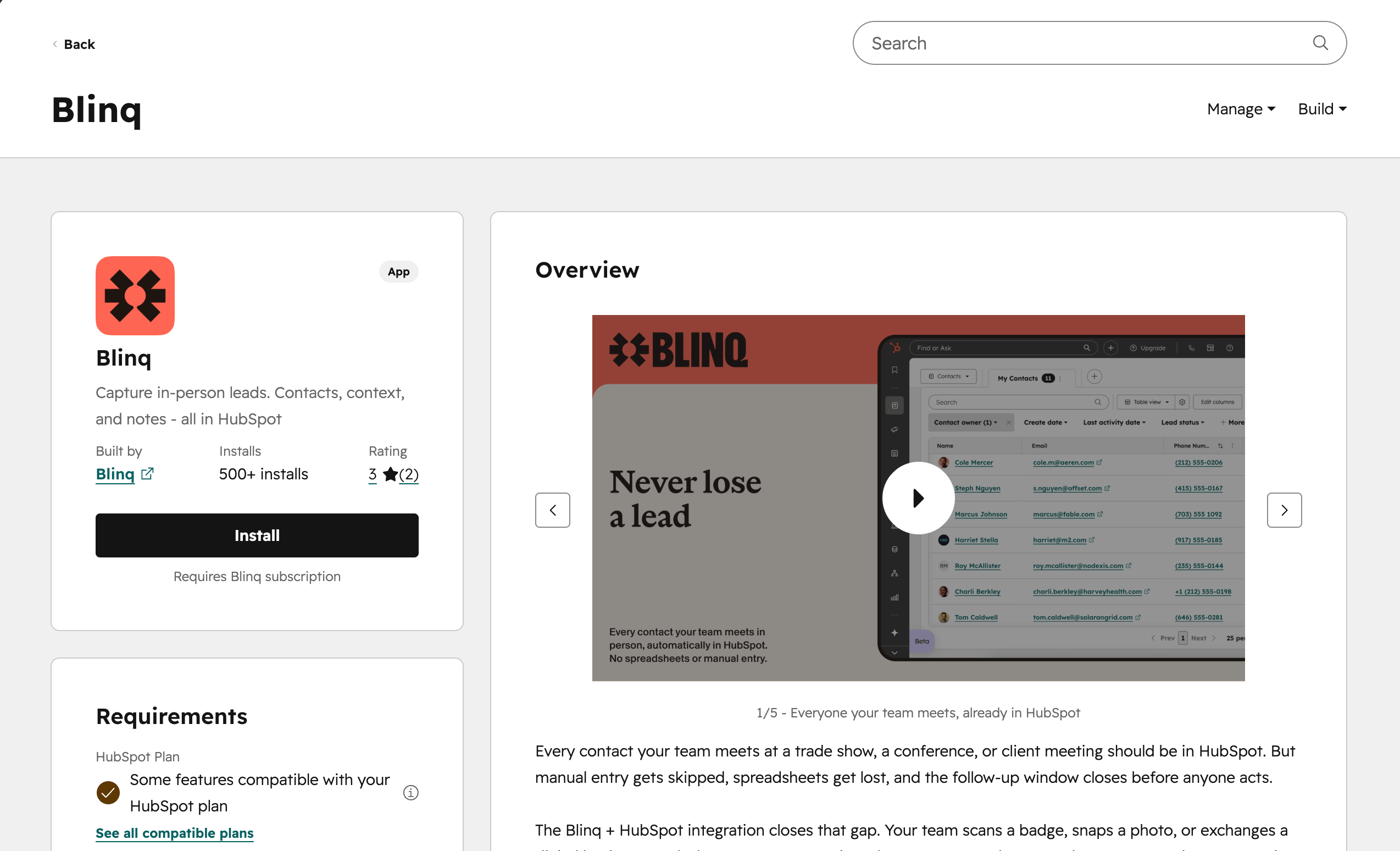
2
Review requirements
Review the requirements to see what features are available on your HubSpot plan, and confirm you have a Blinq Business or Enterprise subscription.
3
Install and authenticate
Click Install to launch a window where you can authenticate with your Blinq account. If you’re not already logged in, log in to your Blinq account, or get Blinq Business, which includes the HubSpot integration.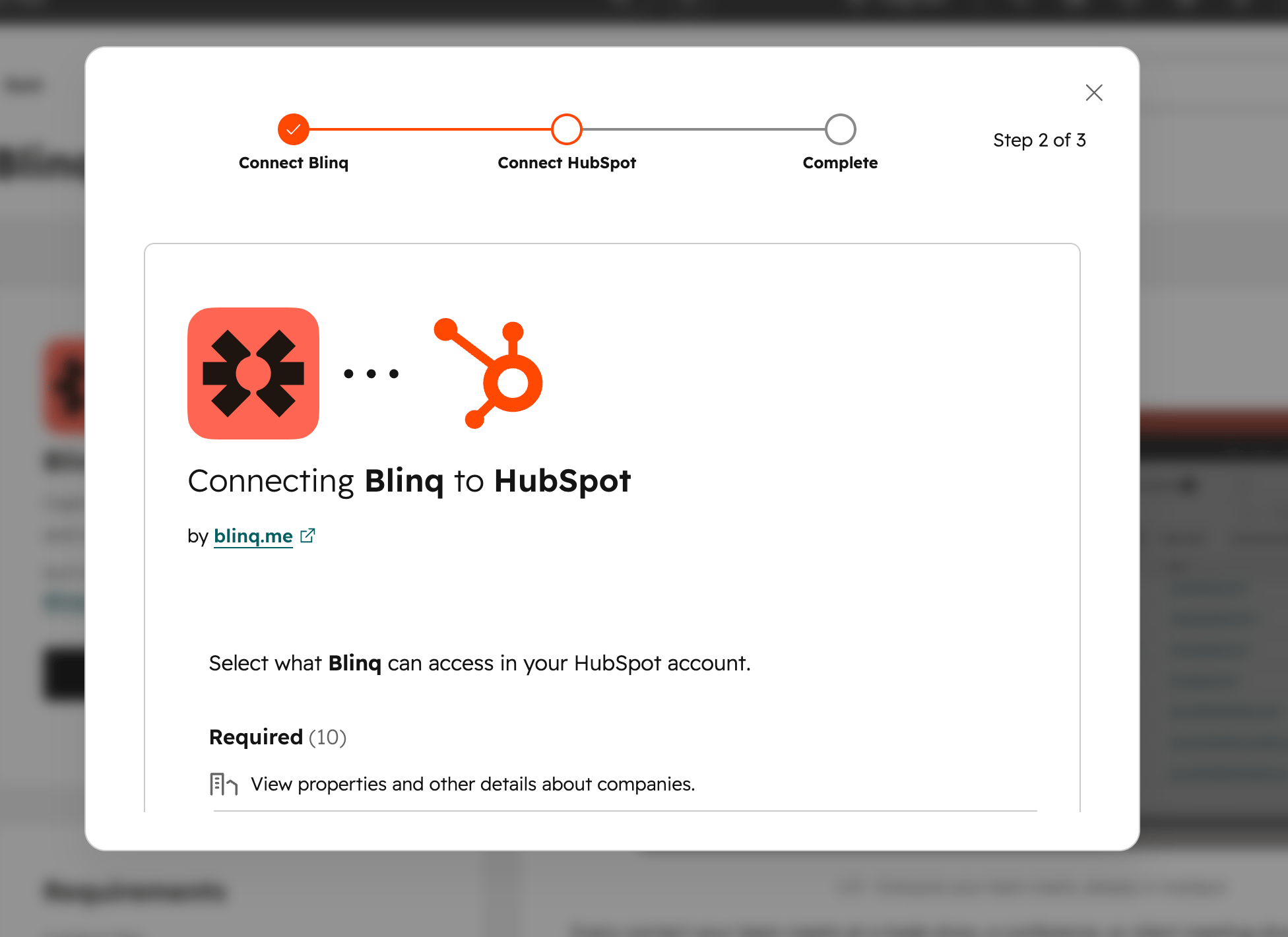
4
Connect the app
Once you’ve authenticated with your Blinq account, finish the HubSpot install by reviewing what Blinq can access in your HubSpot account, accepting the third-party app notice, and confirming Connect app.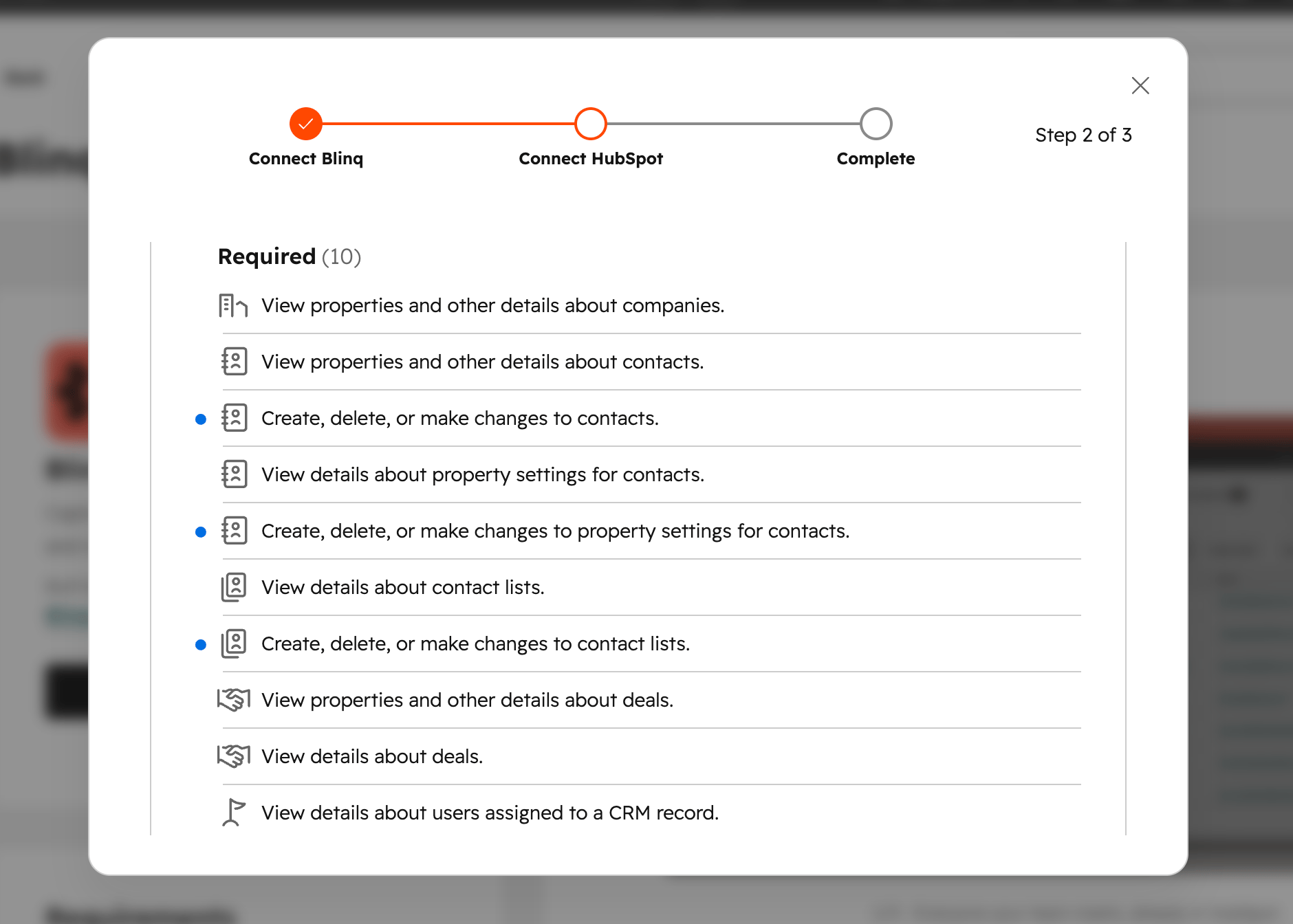
Blinq is now connected to HubSpot.